Secondary Electronic Claims Setup
10/21/2008
Carrier Setup
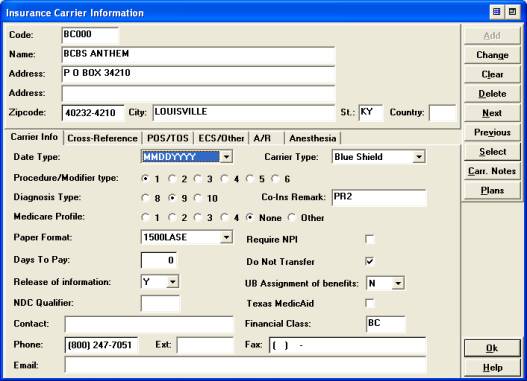
����������� 1. Version 7.0, The Co-Ins remark field in the Maintenance>>Insurance carrier ����������� screen should �� be PR2 on all carriers, including Medicare.
����������� 2. Version 6.5, under Carriers, the remark code field will not be available
����������� 3. Carrier type must be filled in. �����������
����������� 4. Release of Information must be Y
�����������
 ���
���
Carrier Setup continued
����������� Carrier
ECS\ Other Tab
����������� 1. All carriers must have a payor id.
����������� If the payor id is unknown, use NOCOD for claims sent to HCDS.
����������� McKesson clients only: If the payor id is unknown, use 00000 for claims sent� � on the ENSFP � ENSFPA � ENSF � ENSFA formats.
�����������
����������� 2. The source of payment must be filled in.
����������� �Medicare, Railroad, and DME use MB, BlueCross\Shield use BL,������������������������������ ���������� Medicaid use MC and all Commercial carriers use CI.
�����������
����������� 3. The type of insurance field should be MB for Medicare, Railroad, and DME.
����������� Use OT for all other carriers. Blue Cross and Medicaid will need to choose the ����������� closest description
����������� 4. Bill Primary Only- Applies to electronic claims only.
�����������
����������� The �Bill Primary Only� box should be un-checked on those carriers that
you ���� want the secondary claims to be
sent electronically.
����������� �
Patient Coverage Setup
Primary insurance�
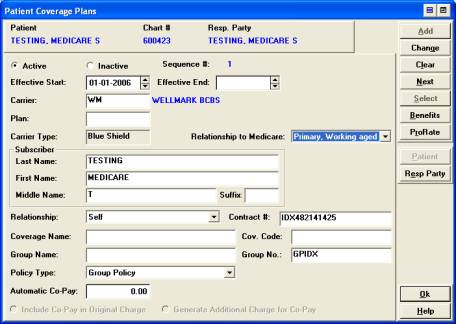
����������� 1. Relationship to Medicare.� This field is only used when there is an insurance ��������� that is primary to Medicare.� If Medicare is primary use NONE.
����������� 2. Policy Type
����������� ����������� - Non-Medicare carriers, choose �group policy� or �other�
����������� - Medicare carriers, choose �Medicare conditionally primary�


Secondary or Tertiary
Insurance �
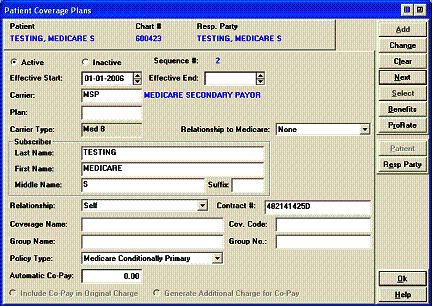
����������� 1. Relationship to Medicare = NONE
����������� 2. Policy Type
����������������������� -
Non-Medicare carriers, choose �group
policy� or �other�
����������� - Medicare carriers, choose �Medicare conditionally primary�
����������� 
Payment Posting
When posting the payments, the Allowed Amounts MUST be in the payment disbursal screen when entering the payment for each line item. If the allowed amount is missing the electronic claim will be rejected because it is out of balance.
Patient History Detail
����������� 1. Double-click on each of the line items in patient history to enter in the remark ����������������������� code.
����������� 2. Each line item must have a remark code entered in the Remark Code field after �������� the payment has been made.
�����������
����������� 3. If the EOB shows multiple remark codes, use only one that best describes what� ������ the primary paid.
�����������
����������� 4. Not all insurance carriers will use the HIPAA-compliant remark codes on their �������� EOB�s. If this � happens, make sure you use the HIPAA-compliant code on the line ������� item.
����������� Examples of Remark codes:
����������������������� CO1 = Deductible
����������������������� CO2 = Coinsurance Amount
����������������������� CO3 = Co-payment
����������������������� CO45- Charges exceed your contracted/legislated fee ������������������������������������������������������������� arrangement
����������������������� CO51 �These services are non-covered because this is a pre-existing �������������������������� condition
����������� For a complete list of Remark codes go to www.wpc-edi.com
����������� Click
on HIPAA Code Lists >>Claim Adjustment Reason Codes
If the remark code field is not
available when you double-click on the line item, there is a system default in
the POM Utilities under the MORE Button. Set the dental fields to YES to make
the remark code available. Contact HCDS support if you need assistance.
We are currently working with programming to add the remark code while the payment is being posted rather than entering the remark code after the payment is posted to help reduce keystrokes and time.
Billing
�Electronic Claims
����������� 1. Create a separate billing run for secondary claims.�
����������� 2.� Un-check primary plan and check the non-primary plan box���������
����������� 3.� Enter a low carrier code and high carrier code to only bill one carrier.
����������� Bill Primary Only field should be
un-checked on those carriers that you want ���� the
secondary claims to be sent electronically.